
Magnetic Keyboard Troubleshooting
For M4G magnetic (Hall Effect) keyboards. These keyboards are extremely sensitive and customizable, so most issues come from calibration, profiles, sensitivity, or drivers — not hardware failure.
Calibration (Fix random typing / keys not working)
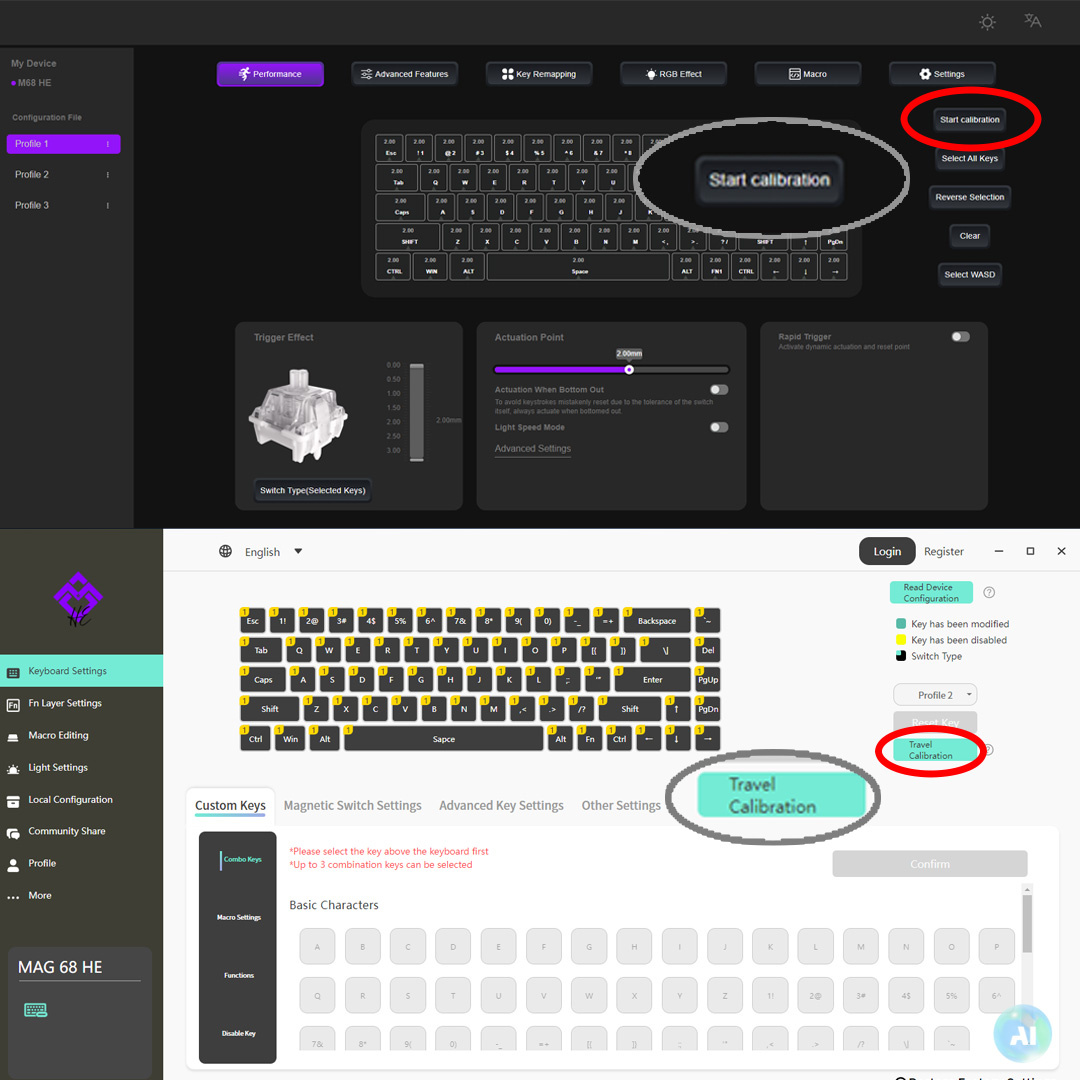
Calibration Steps
- Open M4G software for your keyboard model.
- Find the Calibration button (see screenshot above).
- Choose Your keys Or select all keys And process.
- Click Calibration and follow the instructions shown in the software.
- Note: Some keyboard versions may require pressing each key for about 1 second during calibration, while others calibrate automatically. The correct procedure will always be displayed inside the software guide.
- When it finishes, test typing again.
- If needed, restore default actuation/deadzone values, then calibrate once more.
If the problem continues after calibration
Advanced
- Restore default settings in the software (actuation / deadzone / RT), then calibrate again.
- Use a direct motherboard USB port (avoid hubs/adapters).
- Device Manager → uninstall the keyboard device → replug.
- Restart your PC and try again.
- Test on another PC to confirm it’s not an OS conflict.
Keys stop working or feel inconsistent
Quick Fix
- Open M4G software for your model and run a full calibration.
- Restore default actuation and deadzone values.
- Save/apply settings properly (some models require Apply/Save).
- Plug directly into the PC (avoid USB hubs/adapters).
If still not fixed
Advanced
- Uninstall the keyboard device in Device Manager, then replug.
- Try another PC to rule out OS conflicts.
- Create a clean profile (no macros, default RT) and retest.
Keyboard types by itself / random inputs
Quick Fix
- Restore defaults (actuation / deadzone / rapid trigger).
- Run calibration again after restoring defaults.
- Increase deadzone slightly to reduce accidental activation.
- Remove any macros/remaps and test in a clean profile.
When it may be hardware
Hardware warning
- If random input happens even after defaults + calibration on multiple PCs, contact support.
- If liquid damage occurred, hardware issues are more likely.
Software can’t detect the keyboard
Quick Fix
- Use a direct USB port (no hub).
- Try a different USB port and cable if possible.
- Close conflicting tools (macro apps / RGB tools / remappers).
- Run the software as Administrator.
Driver reset approach
Advanced
- Uninstall the keyboard device in Device Manager, then replug.
- Restart the PC and open software again.
- If your model supports a software restore factory option, use it, then recalibrate.
Rapid Trigger feels “broken” (typing unstable)
Quick Fix
- Restore default Rapid Trigger settings.
- Increase actuation distance slightly (better for typing).
- Set a safer deadzone to avoid accidental triggers.
- Create 2 profiles: Typing and Gaming.
Best practice
Recommended
- Typing profile: calmer RT + higher actuation.
- Gaming profile: RT enabled + lower actuation.
- After changes, recalibrate once.
Double typing / missed inputs
Quick Fix
- Run calibration in the software.
- Restore default actuation/deadzone values.
- Remove aggressive Rapid Trigger settings and retest.
- Test in another USB port (avoid hubs).
If it happens only in games
Game-side checks
- Disable in-game double-bindings.
- Disable third-party overlays/macro tools temporarily.
- Test with a clean profile.
RGB not working / stuck / too dim
Quick Fix
- Switch to a different lighting mode/profile in the software.
- Apply/Save settings properly.
- Try another USB port (power stability matters).
- If settings look corrupted, restore defaults then apply again.
If RGB works sometimes
Advanced
- Avoid USB hubs/adapters.
- Reinstall driver (uninstall device → replug).
Profile won’t save / settings reset after restart
Quick Fix
- Make changes, then click Apply/Save (if available).
- Verify you are editing the correct profile slot.
- Try saving with the keyboard connected directly (no hub).
- Restart software and confirm the selected profile is active.
If it still won’t save
Advanced
- Reset to defaults and create the profile again.
- Reinstall the software (clean install).
Keyboard not responding after changing settings
Quick Fix
- Restore defaults for actuation/deadzone/RT.
- Recalibrate immediately after restoring defaults.
- Try a clean profile with stock settings.
- Restart the PC and reconnect the keyboard.
If you can’t access software
Advanced
- Reinstall driver (uninstall device → replug).
- Try another PC to access the software and reset settings.
Input delay / unstable performance
Quick Fix
- Plug directly into a motherboard USB port (no hub).
- Close background macro/RGB tools temporarily.
- Try a different cable and USB port.
- Test on another PC to confirm.
General known fixes (global checklist)
Checklist
- Restart PC.
- Direct USB port (avoid hubs/adapters).
- Reinstall device driver (uninstall → replug).
- Restore default settings.
- Run calibration after changes.
- Test with a clean profile (no macros/remaps).
- Test on another PC to isolate OS conflicts.